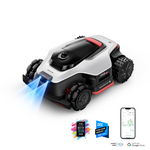
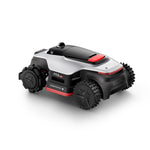
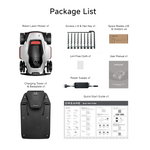
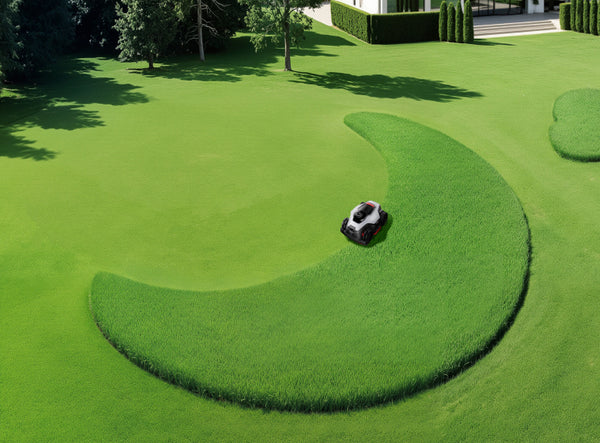
Unbox and go for smart Mowing
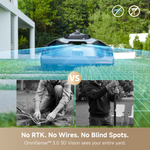
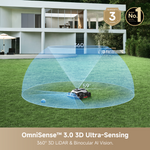
OmniSense™ 3.0 3D Vision sees your entire lawn
No RTK. No Wires. No Blind Spots.
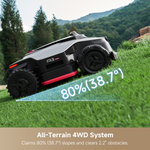
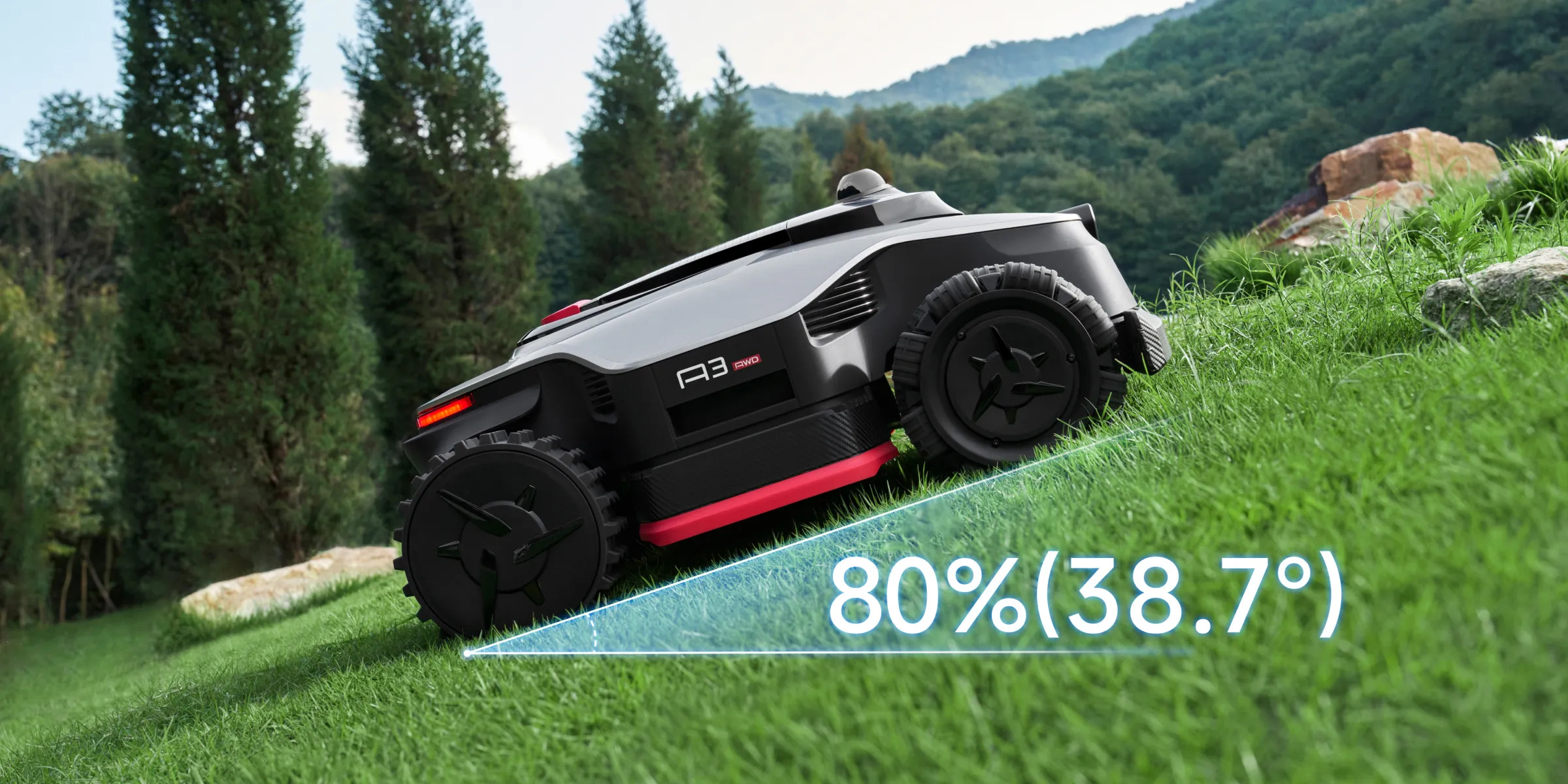
All-Terrain 4WD System
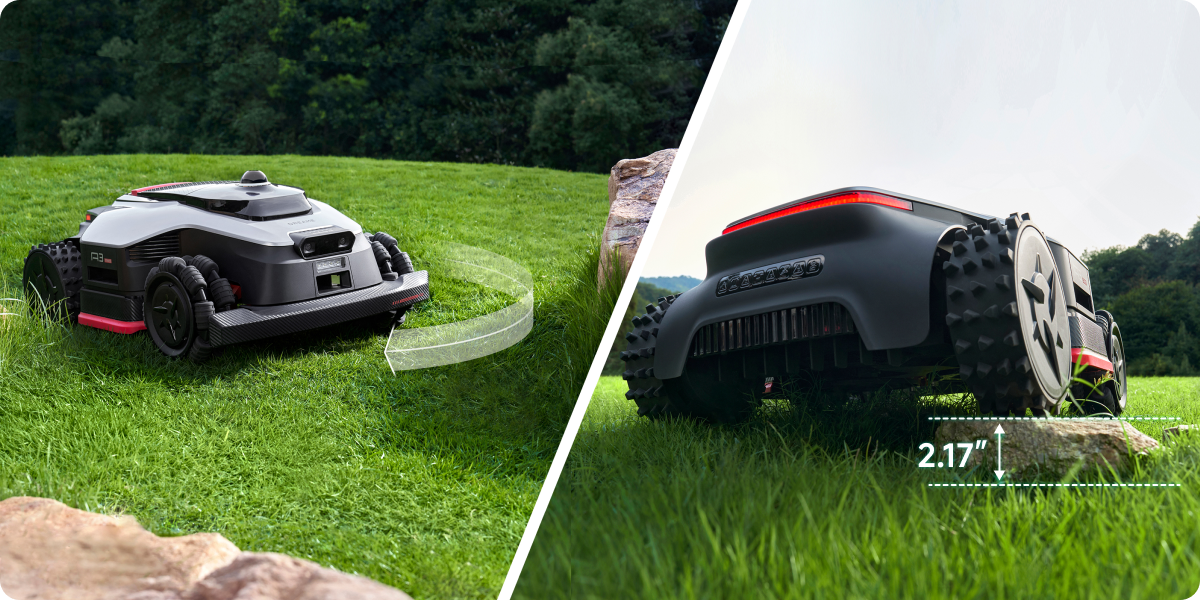
80% (38.7°) slopes, 2.2" obstacles
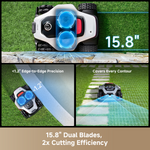
15.8" Dual Blades, 2x Efficiency
EdgeMaster™ 2.0
<1.2" Edge-to-Edge Cutting
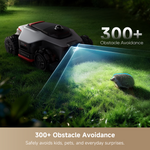
300+ Obstacles Avoidance
High-Capacity Battery, All-Day Performance
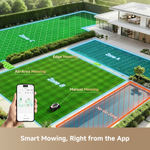
Mow Your Way, Right From the App
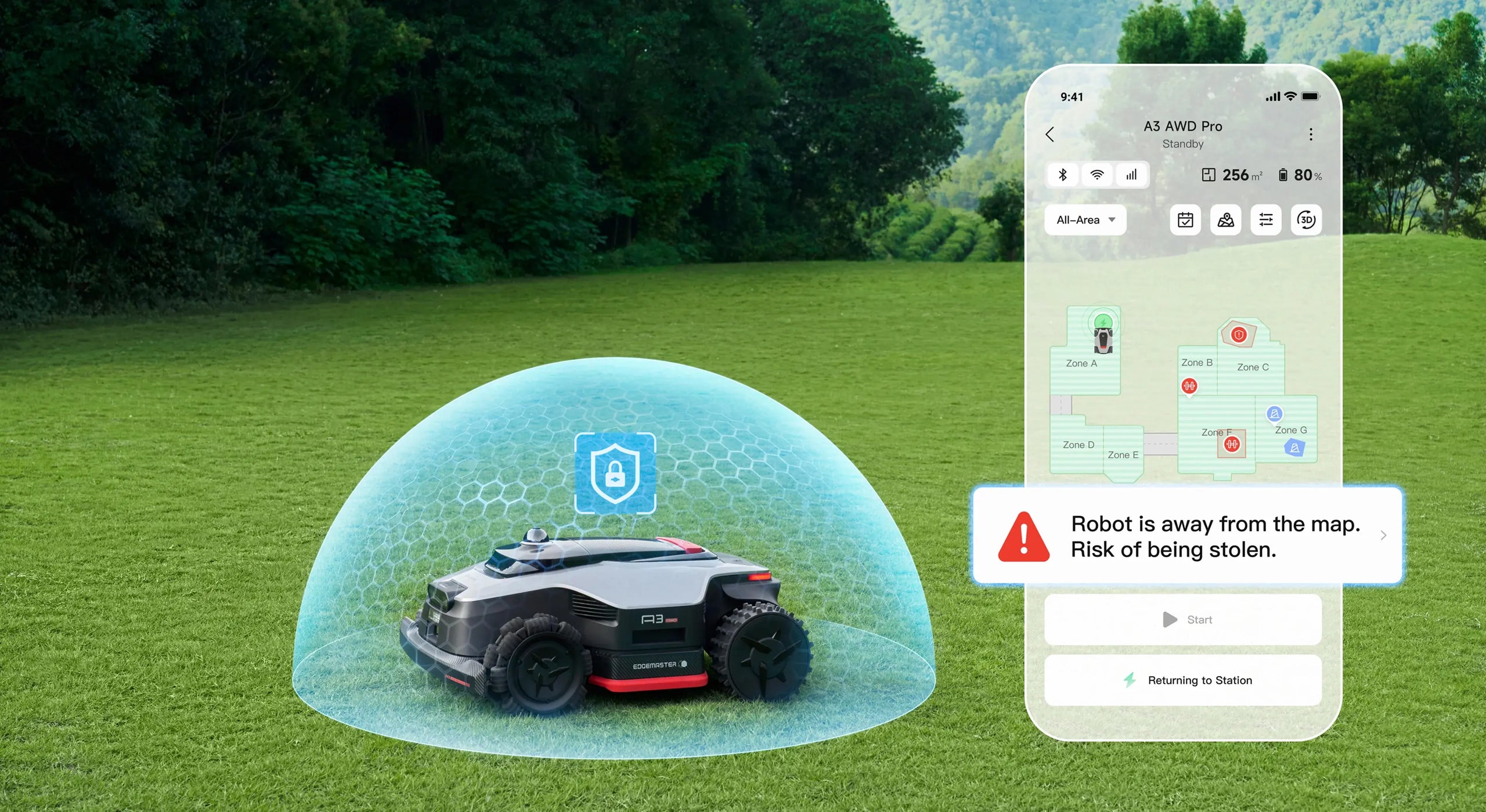
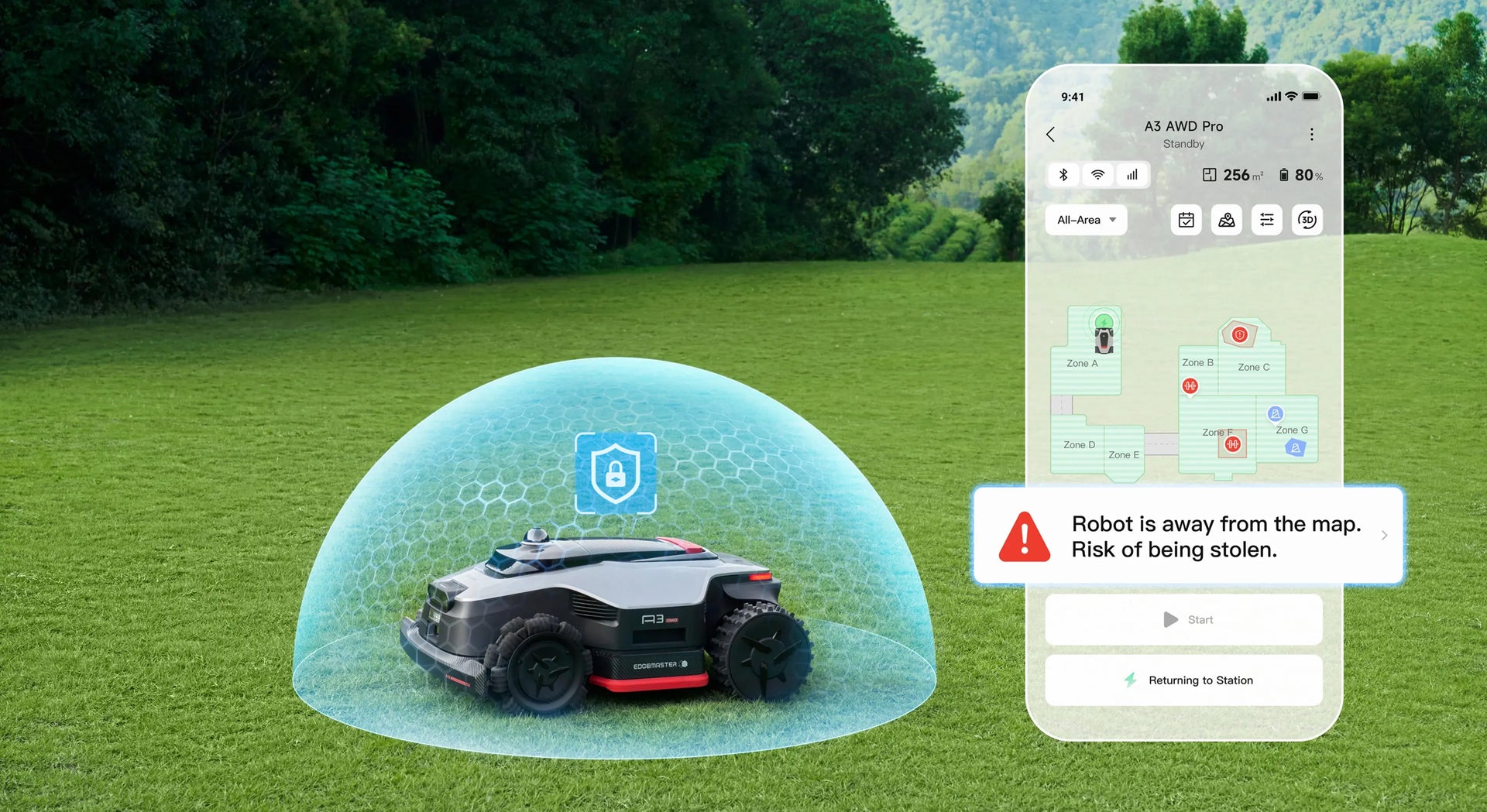
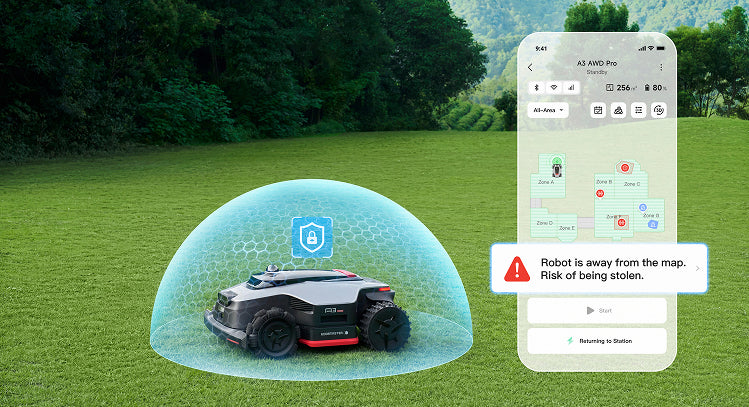
Worry-free Security System
Unbox and go for smart Mowing
OmniSense™ 3.0 3D Vision sees your entire lawn
No RTK. No Wires. No Blind Spots.
All-Terrain 4WD System
80% (38.7°) slopes, 2.2" obstacles
15.8" Dual Blades, 2x Efficiency
EdgeMaster™ 2.0
<1.2" Edge-to-Edge Cutting
300+ Obstacles Avoidance
High-Capacity Battery, All-Day Performance
Mow Your Way, Right From the App
Worry-free Security System
OmniSense™ 3.0
Sees Everything, Sets Up Nothing
With OmniSense™ 3.0, this automatic lawn mower learns your entire yard on its own—mapping paths, spotting obstacles, and mowing in even lines without wires or RTK stations. Your lawn looks consistently tidy with almost no effort from you.
360° 3D LiDAR
Up to 230' (70m)* detection range, 360° field of view, centimeter-level precision.
Binocular AI Vision
High-definition imaging with intelligent real-world object recognition.
Unstoppable Signal-Free Mowing
This LiDAR robot mower navigates confidently under trees, along narrow paths, and in low light—even where GPS signals fail.
300+ Obstacle Avoidance
Safely avoids kids, pets, and everyday surprises.
Low-Speed
Safety Mode
Animal Activity
Zones
Do Not Disturb
Mode
All-Terrain 4WD System
80% (38.7°) Slopes Climbing, 2.2" Obstacles Crossing


With true 4-wheel drive, this remote control lawn mower climbs slopes up to 80% (38.7°) and crosses obstacles up to 2.16"*—so hills, roots, and rough patches won’t interrupt your mowing routine
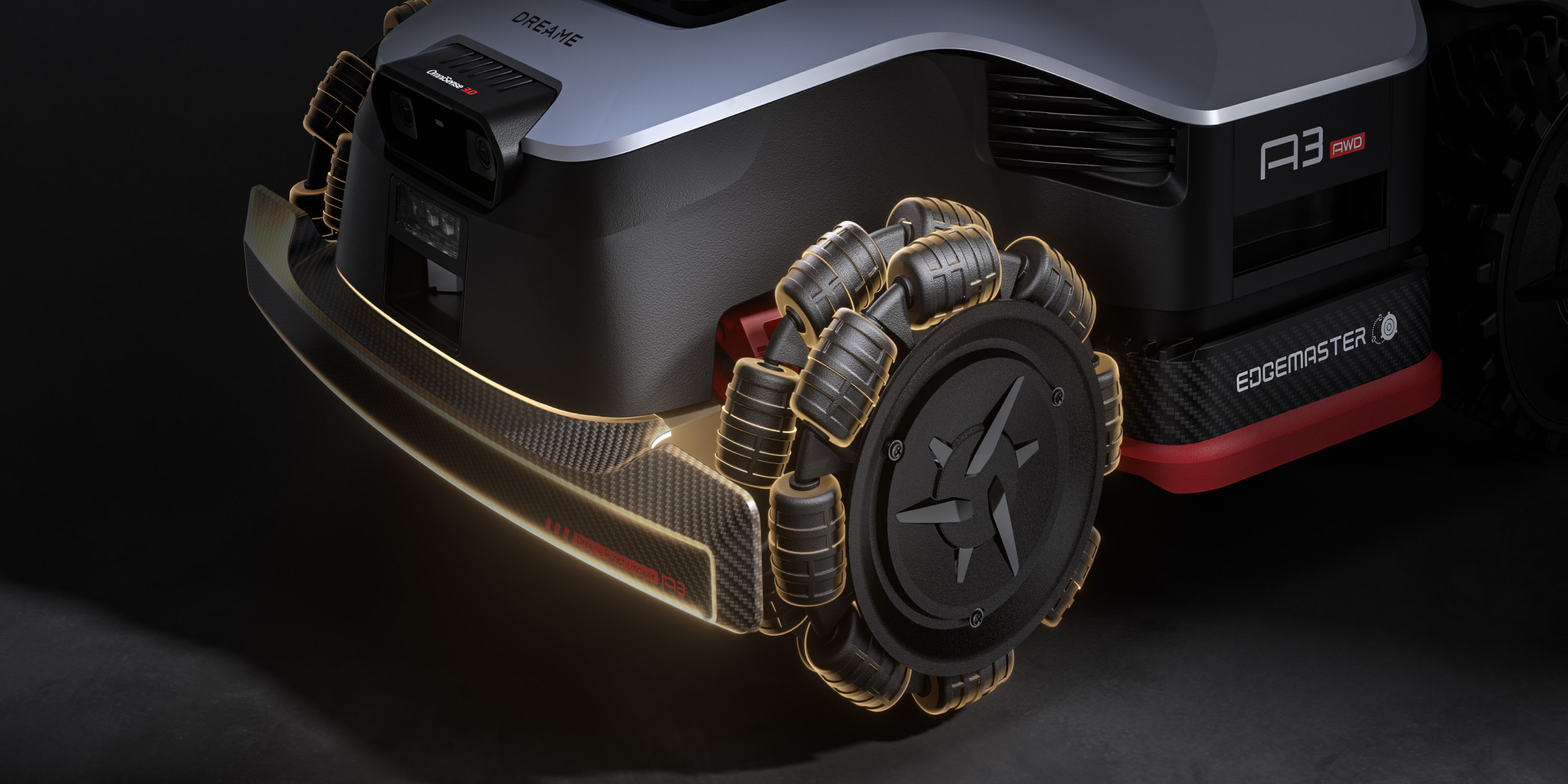
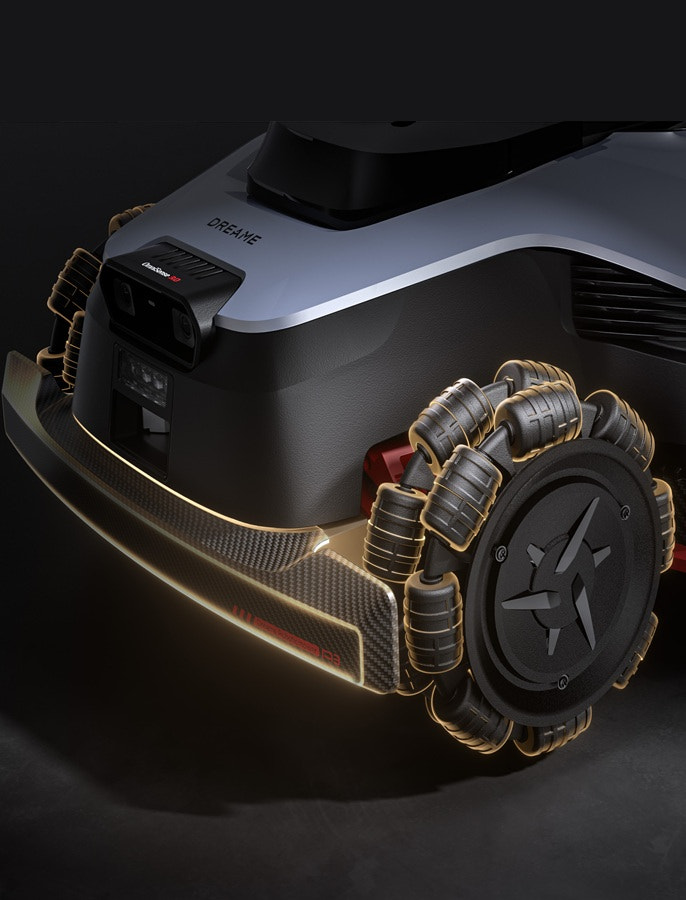
Dual front omni-wheels allow precise zero-turn steering around trees and edges, while rugged rear off-road wheels grip firmly on uneven ground. That means cleaner turns, fewer slips, and straighter mowing lines.
A refined suspension system absorbs shocks from bumpy terrain, while the front bumper cushions impacts for stable, uninterrupted operation. The mower stays balanced and on course—even when your lawn isn’t.
Your Perfect Lawn, You Way
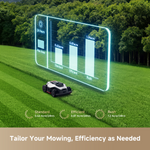
Adjust the cut to match your lawn, your season, and your style, right from the Dreamehome App. Choose a cutting height from 1.2"–3.9" (3–10 cm*), covering everyday trims and thicker growth up to 5.9" (15 cm) for a perfectly uniform result.
Various Mowing Modes & Schedules for Tailored Lawn Care
Choose from 5 mowing modes to match different lawn needs with precision and ease. A dual-schedule system intelligently adapts to seasonal changes and varying grass growth rates for consistent results.
Zone Mowing
All-Area Mowing
Edge Mowing
Manual Mowing
Gives you complete control to mow wherever you want.
Manual Mowing
Gives you complete control to mow wherever you want.
Reliable Power to Cover Your Lawn
Engineered for large yards, a high-capacity battery delivers steady power for thick grass and longer runs—so you can finish more of your lawn in a day, without mid-job interruptions.
Specifications
Robot Lawn Mower Dimensions
740 × 532 × 325mm
Robot Lawn Mower Weight
23.9kg
Mapping & Navigation
OmniSense™ 3.0
Boundary Setup Type
Remote Control + AI Auto-Mapping
Obstacle Avoidance
360° 3D LiDAR + Binocular AI Vision
Working Area Capacity
A3 AWD Pro 2500: 2,500㎡
A3 AWD Pro 3500: 3,500㎡
A3 AWD Pro 5000: 5,000㎡
A3 AWD Pro 3500: 3,500㎡
A3 AWD Pro 5000: 5,000㎡
Drive System
AWD + Hub Motor
Universal Wheels x 2 + Off Road Wheels x 2
Max. Slope Performance
80% (38.7°)
Mowing Width
40cm
Cutting Height
3–10cm
Edge Retention
Disc-to-Edge Distance: < 3cm
Dual-Map
Yes
Multi-Zone Management
Yes
Mowing Modes
All-Area/Zone/Edge/Spot/Manual
Battery Capacity
A3 AWD Pro 2500: 5Ah
A3 AWD Pro 3500: 7.5Ah
A3 AWD Pro 5000: 10Ah
A3 AWD Pro 3500: 7.5Ah
A3 AWD Pro 5000: 10Ah
Charging Current
5A
4G
Yes
Noise Level
≤ 65dB
Why can't the robot return to the charging station?
1) Ensure there are no obstacles blocking the path between the charging station and the work area.
2) Ensure the area within 1 meter around the charging station is open and flat.
3) Check if the charging station has been moved. If it has, you can remotely control the robot to return to the charging station. The station's location will be automatically updated the next time the robot leaves the charging station and starts working.
4) Ensure the charging station is connected to an electrical outlet and has power.
5) Check that the reflective films on the charging station are clean and unobstructed.
6) Check the baseplate of the charging station and the drive wheels to ensure they are free of mud or dirt.
7) Make sure the robot's lidar is clean and unobstructed.
8) Check the robot's battery level. If the robot’s battery is depleted, manually move it to the charging station for recharging.
If the problem persists, there may be an issue with the robot's positioning. Please try remapping the area. For additional assistance, contact the Dreame after-sales service team.
2) Ensure the area within 1 meter around the charging station is open and flat.
3) Check if the charging station has been moved. If it has, you can remotely control the robot to return to the charging station. The station's location will be automatically updated the next time the robot leaves the charging station and starts working.
4) Ensure the charging station is connected to an electrical outlet and has power.
5) Check that the reflective films on the charging station are clean and unobstructed.
6) Check the baseplate of the charging station and the drive wheels to ensure they are free of mud or dirt.
7) Make sure the robot's lidar is clean and unobstructed.
8) Check the robot's battery level. If the robot’s battery is depleted, manually move it to the charging station for recharging.
If the problem persists, there may be an issue with the robot's positioning. Please try remapping the area. For additional assistance, contact the Dreame after-sales service team.
Why can't the robot charge in the charging station?
1) Check the charging station to ensure that it is connected to an electrical outlet and has power.
2) Ensure the charging contacts on the robot and the charging station are properly connected.
3) Check the charging contacts on the robot and the charging station to make sure they are clean.
If the problem persists, contact the Dreame after-sales service team.
2) Ensure the charging contacts on the robot and the charging station are properly connected.
3) Check the charging contacts on the robot and the charging station to make sure they are clean.
If the problem persists, contact the Dreame after-sales service team.
Will poor Wi-Fi signal in my garden affect mapping and mowing?
The robot is equipped with a Bluetooth feature, allowing it to connect to the app to complete mapping successfully without requiring a Wi-Fi connection. After mapping is complete, you can set a schedule, and the robot will follow it to mow autonomously, even without network connectivity. Additionally, you can press the buttons on the control panel to start tasks. Also, the Link module is pre-installed in the robot, offering up to 3 years of free Link service, which allows the robot to stay connected to the app and be remotely controlled, even without Wi-Fi.
My Wi-Fi signal is strong, but the robot always fails to connect to the network. What should I do?
1) Ensure that the firewall or other security features on your home Wi-Fi are disabled. If they are enabled, please disable them before retry connecting.
2) Check your Wi-Fi password to confirm it doesn’t contain punctuation marks or a mix of uppercase and lowercase letters. If it does, try changing it to a simpler password without special characters, then retry connecting.
3) Check your robot’s binding status to ensure it is not already linked to another account. The robot can only be connected to one account at a time. To switch accounts, remove the robot from the current account in the app before proceeding with the network setup.
If the problem persists, contact Dreame after-sales service for further assistance.
2) Check your Wi-Fi password to confirm it doesn’t contain punctuation marks or a mix of uppercase and lowercase letters. If it does, try changing it to a simpler password without special characters, then retry connecting.
3) Check your robot’s binding status to ensure it is not already linked to another account. The robot can only be connected to one account at a time. To switch accounts, remove the robot from the current account in the app before proceeding with the network setup.
If the problem persists, contact Dreame after-sales service for further assistance.
Does the robot support 4G connection?
Yes, the robot comes with a pre-installed Link module that includes Link Service, free for up to 3 years once the robot is powered on. This allows the robot to stay connected to the app and be remotely controlled without a Wi-Fi connection.
How do I map my garden if its front and back yards are not connected?
a. If your front and back yards are not connected but there is a passageway the robot can travel through:
You can first create the boundary of the front yard, then tap "Work zone" in the app to remotely control the robot to go to the backyard to create the boundary. Next, tap "Path" to remotely control the robot to create a path connecting the front and back yards. Finally, generate a complete map.
b. If there is a physical barrier between the front and back yards that prevents the robot from moving between them:
The robot supports two individual maps. You can create separate maps for the front and back gardens, then switch between them as needed.
You can first create the boundary of the front yard, then tap "Work zone" in the app to remotely control the robot to go to the backyard to create the boundary. Next, tap "Path" to remotely control the robot to create a path connecting the front and back yards. Finally, generate a complete map.
b. If there is a physical barrier between the front and back yards that prevents the robot from moving between them:
The robot supports two individual maps. You can create separate maps for the front and back gardens, then switch between them as needed.
Do I need two charging stations to create two maps?
Yes, because the robot needs to start from the charging station for mapping, we recommend placing a separate charging station for each map. When switching between maps in the app, simply move the robot manually to the corresponding area.
Can I place the charging station outside the lawn when creating a map?
Yes, you can install the charging station in any suitable location. If the charging station is outside the work area, you can tap "Path" during mapping to remotely control the robot to move from the work area to the area in front of the charging station, creating a connecting path. The robot will not activate the blade disc while moving along this path to avoid damaging the surface.
The boundary automatically detected by the robot is incorrect. How can I modify it?
1) During Auto Boundary Detection, you can exit Auto mode at any time and use the "Undo" feature to remotely control the robot and remove unwanted boundary sections.
2) After the map is generated, you can also modify it through the "Map Editing" section, where you can expand or split zones as needed.
There have been some changes to my garden. Do I need to remap?
Yes, you can directly edit the existing map in "Map Editing" via the app. If your garden has changed significantly, we recommend remapping to avoid potential issues with positioning.
Will moving the charging station's location after mapping affect the robot's work?
If you move the charging station's position substantially while the robot is working, it will lead to a failure in docking. However, the robot will update the charging station's location automatically each time it leaves the charging station to start a task. If you have moved the charging station outside the work area, you can go to Map Editing > Set Path to create a path to connect the charging station with the work area.
How do I modify the map after it is complete?
1) Expanding a Zone: Go to "Map Editing" and select "Set zone". If the new zone doesn’t overlap with an existing one, a path is required to connect them. If they do overlap, the new zone will automatically merge with the existing one.
2) Deleting a Zone: In "Map Editing", you can delete independent zones that have not been separated. To remove part of a zone, use the "Set no-go zone" function to draw the area you want to delete.
*Source: Frost & Sullivan; Based on the research on the global LiDAR robotic lawn mower market.
*The product appearance, structure, color, function and other details presented in the promotional materials are for illustration purposes only and may not be an exact representation of the product. Please refer to the actual product for accurate information.
*All data is based on our in-house or third-party labs. Actual performance may vary depending on environmental factors and usage.
*Detection range up to 230' under 80% reflectivity conditions.
*1.2"–3.9"cutting height measured from blade disc to ground. Data based on Dreame Lab testing.
*In Auto-Mowing Mode, the disc-to-edge distance is less than 1.2" . Data based on Dreame Lab testing.
*Battery capacity varies by model and configuration. The 10Ah battery is equipped on the A3 AWD Pro 5000 model. See specifications for details.
*Link service subscription included: 3 years for A3 AWD Pro 2500/3500/5000. Continued use beyond the included period requires a separate purchase.
*AirTag needs to be purchased separately from the Apple Store.
*65dB represents the sound level of the mower in standard cutting mode.
*Eco-Friendly refers to the mower's battery-powered operation, which produces no direct exhaust emissions during use compared to traditional gas-powered mowers. It does not imply zero emissions across the entire product lifecy.
*The working area must contain obstacles that the system can recognize. Actual obstacle-avoidance performance may vary depending on yard layout, obstacle type, and operating conditions.
Australia
中国大陆
日本
Türkiye
Italia
Netherlands
Belgium
Greece
Polska
Norway
Sweden
Finland
Denmark
Hungary
Czechia
Slovenia
Croatia
Switzerland
United Kingdom
Canada


Back to Main Product


Special Offers